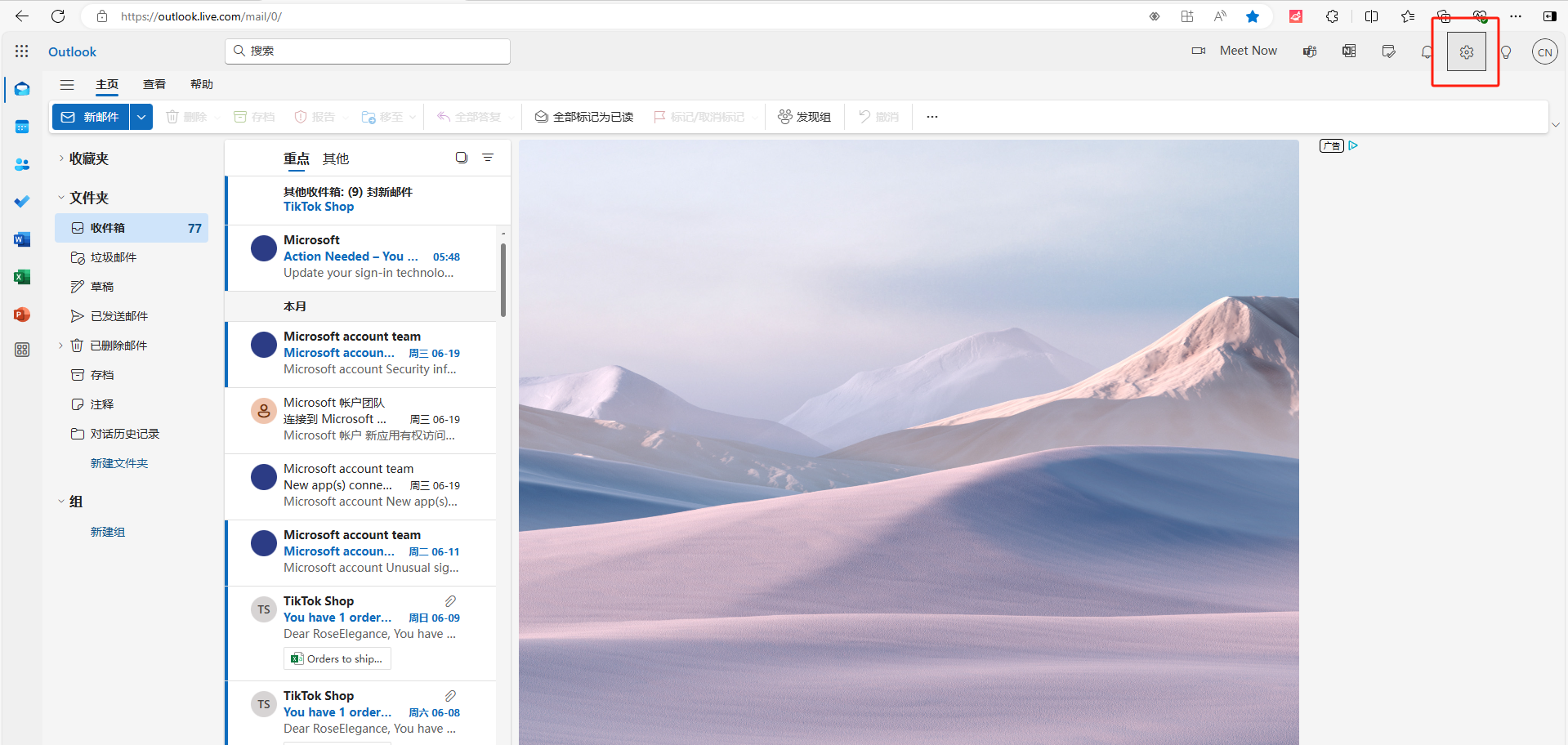
Before a seller can use DAMI for creator outreach, the store connection needs to be clean. In this guide, we walk through the way we expect TikTok Shop sellers to authorize a store in DAMI Ultra, confirm the store is connected, and sync targeting plans before building creator campaigns.
Start from the TikTok Shop app marketplace
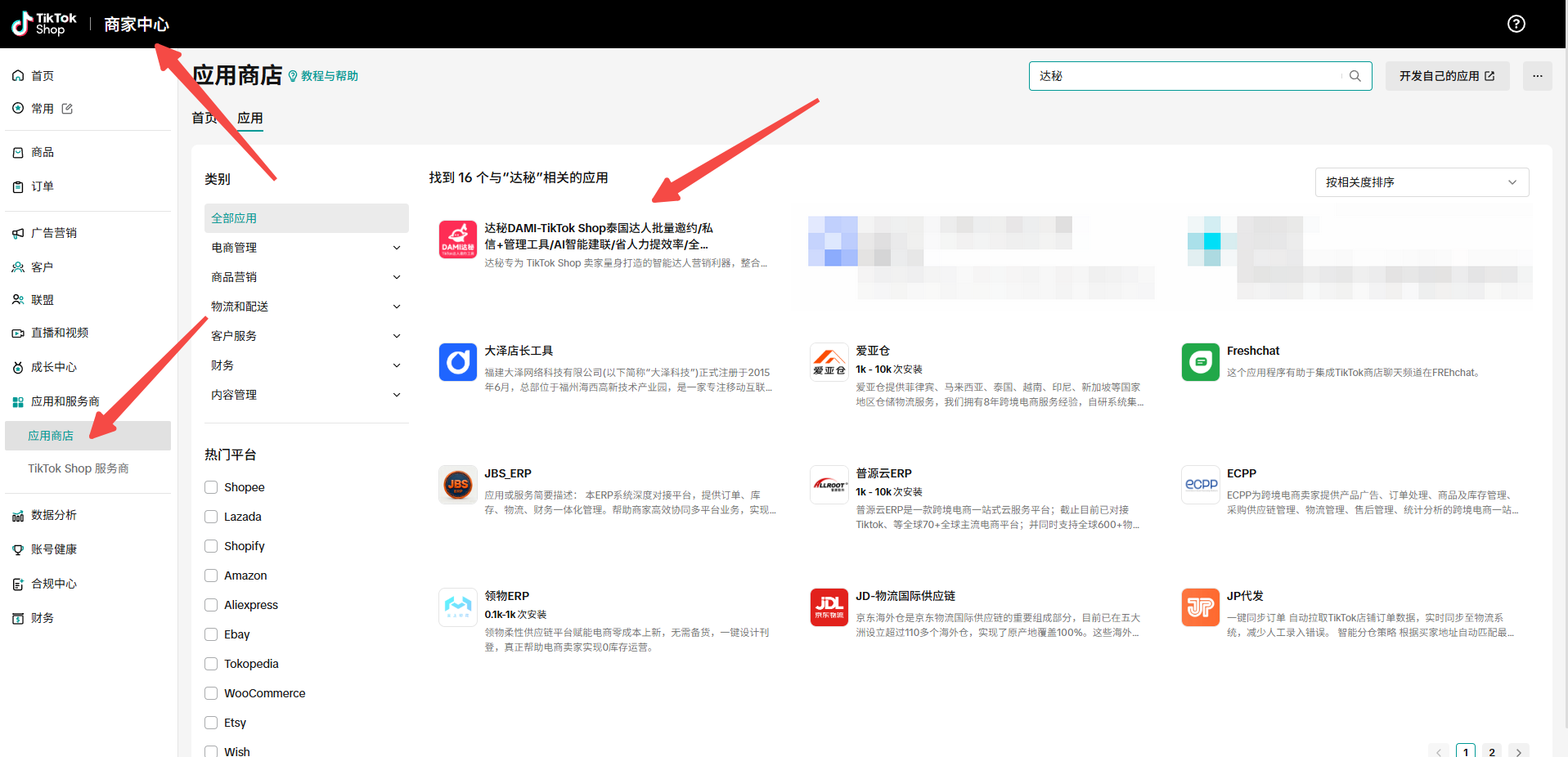
The cleanest setup path starts inside the TikTok Shop app marketplace. Search for DAMI, open the app listing, and make sure the seller is using the correct account before continuing. This keeps the authorization path tied to the store account that will actually run creator outreach.
Open Store Management in DAMI
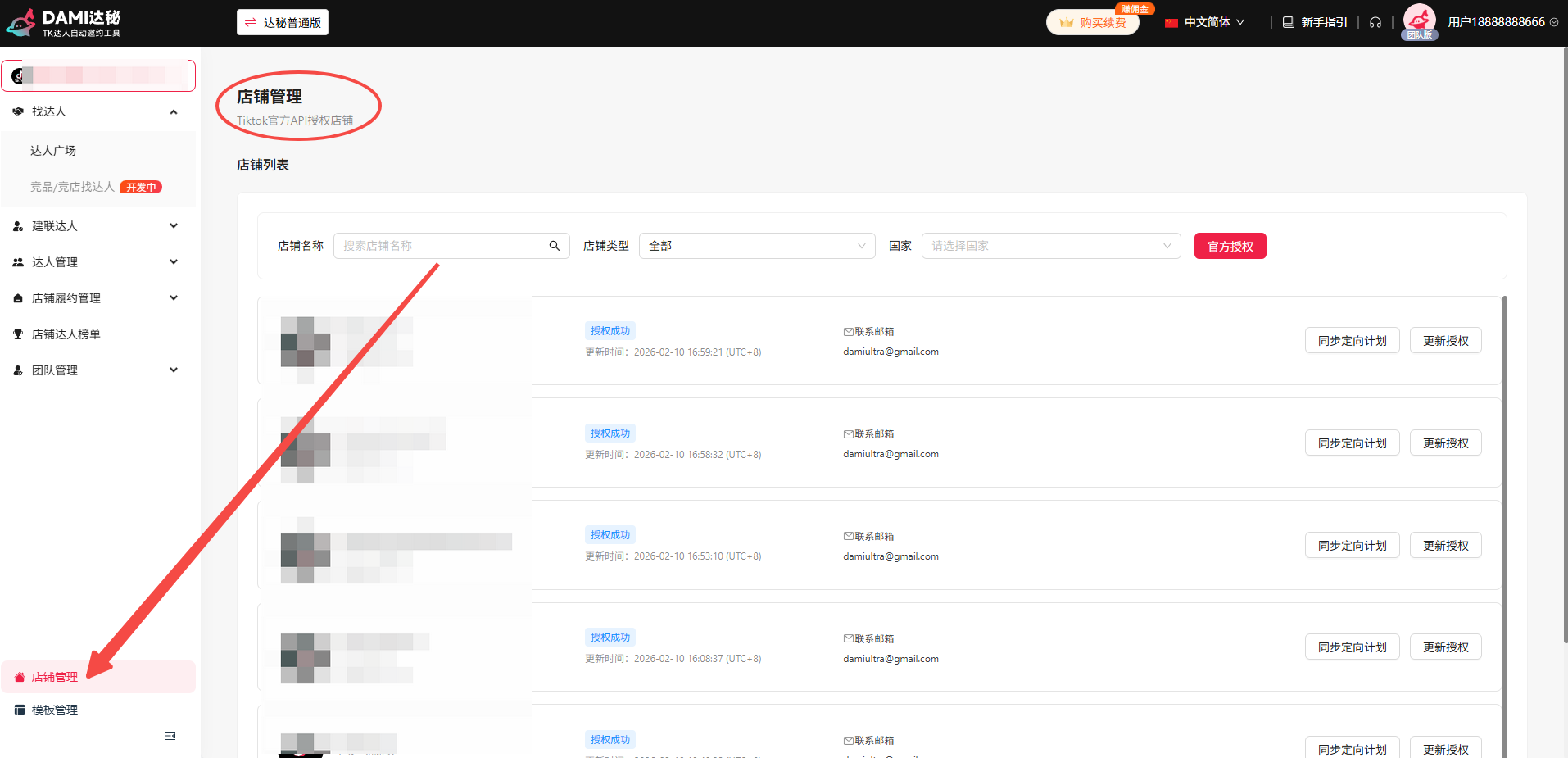
After entering DAMI Ultra, use Store Management as the control center for connected stores. This is where operators review authorized stores, update authorization, and synchronize targeting plans. If the team manages several stores, we recommend checking the store name and market before starting any outreach task.
Complete official authorization
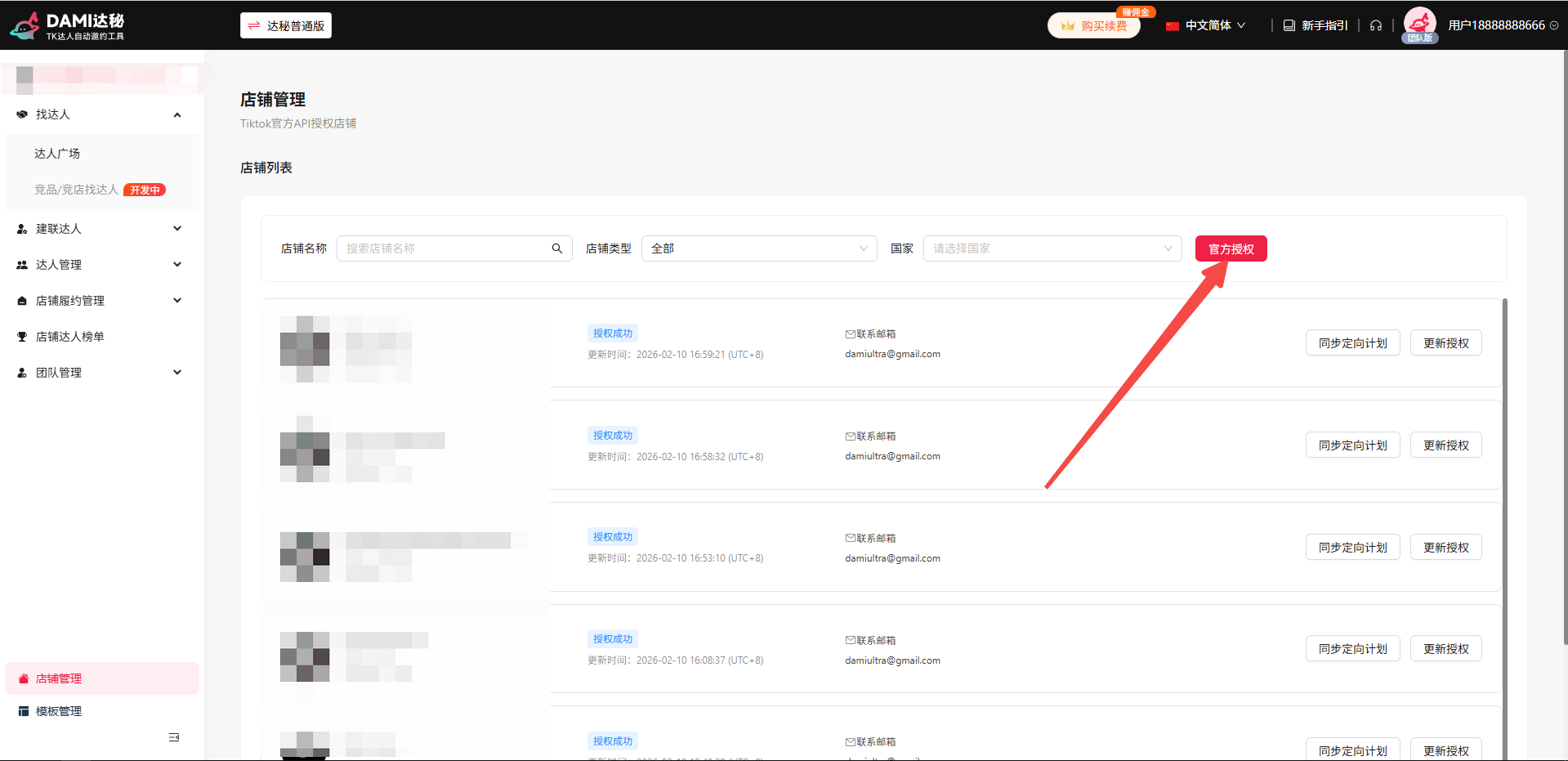
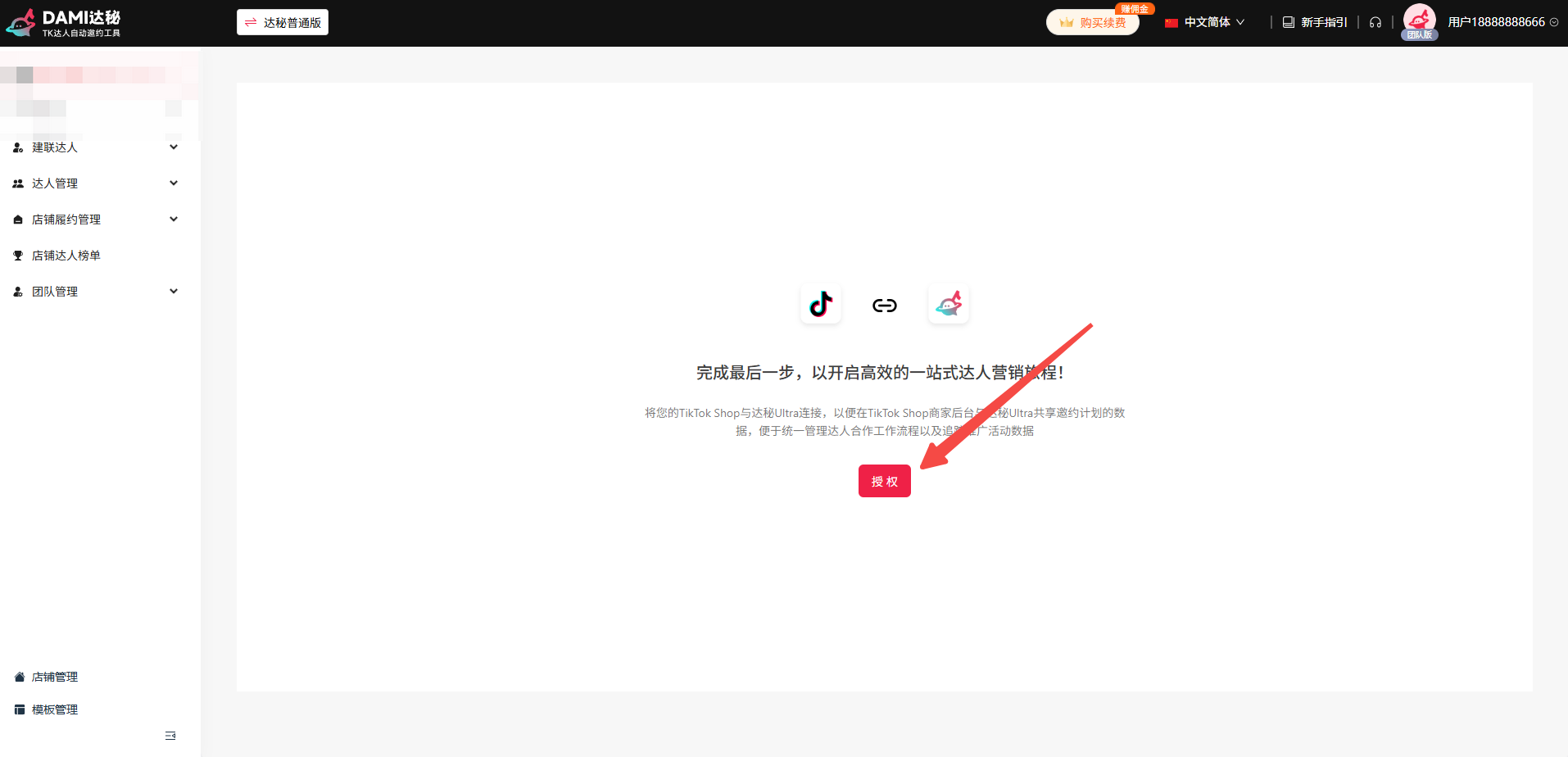
Click the official authorization button and complete the TikTok Shop authorization flow. Once the store appears in DAMI, return to Store Management and run the targeting-plan sync. We do this before campaign setup so invitation filtering and outreach data are based on current store information.
Post-authorization checklist
Check that the authorized store appears in the store list with the expected market and account information.
Run the sync before creating creator segments or outreach tasks.
Make sure the person responsible for this store knows which campaigns and creators they own.
Do not launch volume before templates, product positioning, and sample rules are ready.
FAQ
Should I authorize every store separately?
Yes. If your team operates multiple TikTok Shop stores, connect and verify each store separately in DAMI Store Management.
What should I do right after authorization?
Run targeting-plan sync, then confirm the store and campaign data before creating creator outreach tasks.
Keep building with DAMI
We publish these guides to help TikTok Shop sellers run creator outreach with clearer steps, cleaner tracking, and fewer disconnected spreadsheets.